 Itemlume
DIAGNOSTIC GUIDE / Logo studio
Why does my SVG logo lose colors when I import it into Canva?
An SVG that looks correct in one viewer may rely on styles or features that an importing editor interprets differently. Preserve the original, compare the import with a reference preview, and simplify a duplicate in a vector editor when necessary. Do not approve a color change just because the file extension says SVG or the upload completed.
Separate file structure from visible appearance
Start with a reference rendering of the approved logo. Note which color, stroke, gradient, or letter changed after import. Open the source in a second viewer or vector editor. If the source is already wrong there, the issue predates Canva; if only the import differs, focus on interchange.
An SVG can contain an embedded raster image. That is a separate question from a genuinely vector shape losing its style. Itemlume logo output is raster artwork, not automatically an editable production SVG. Renaming that download does not provide paths, independent fill colors, or a font license.
Make one simplified interchange copy
Canva’s upload guidance describes SVG preparation, including compatible structure, outlined text and strokes, and presentation attributes. Use those requirements as an external handoff checklist. Keep the designer’s editable master; simplification for upload should happen in a separate copy so the original remains available.
Do not simplify all effects blindly. First isolate the element that changed and record its intended appearance. A flattened gradient or outlined wordmark may look acceptable yet lose editability. Decide whether the recipient needs editable shapes or only a faithful visual; those are different delivery criteria.
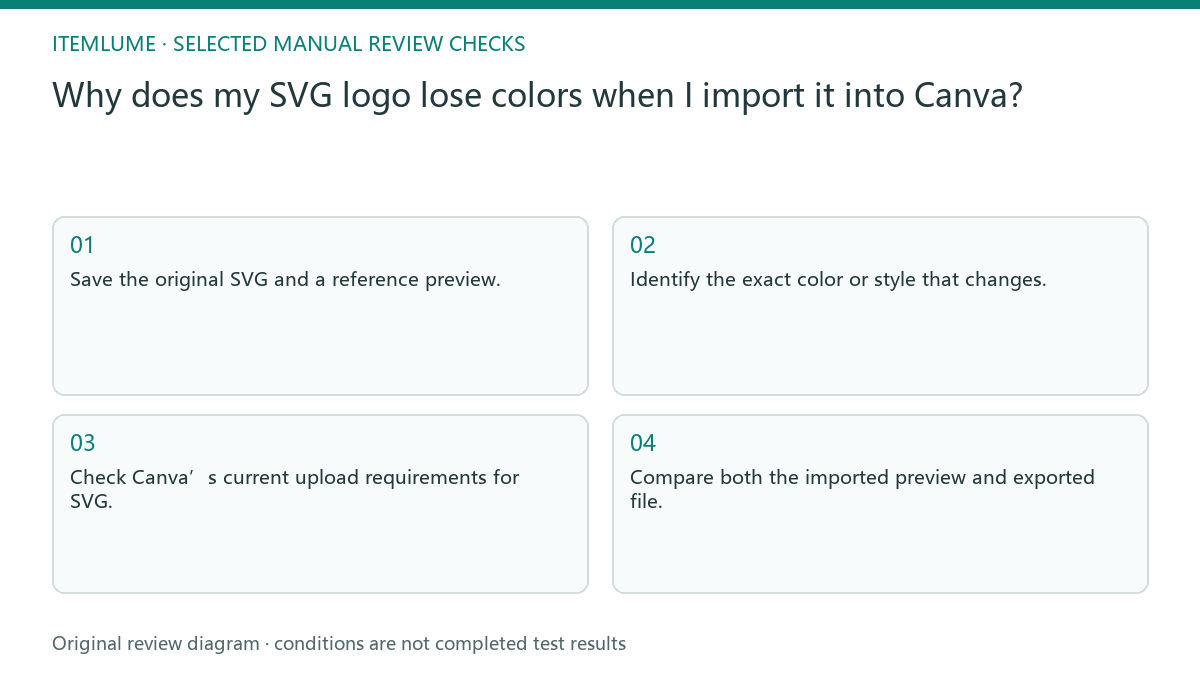
- Save the original SVG and a reference preview.
- Identify the exact color or style that changes.
- Check Canva’s current upload requirements for SVG.
- Prepare one compliant duplicate in a vector editor.
- Compare both the imported preview and exported file.
A fictional two-color wordmark test
Fictional exercise: a shop wordmark has charcoal letters and one amber circle. The source displays both colors, but the imported circle turns charcoal. The operator creates a duplicate using explicit fill attributes for that circle while leaving the master unchanged. This is a proposed diagnosis exercise, not a Canva test result.
Compare the duplicate import against the same reference on a neutral background. If the circle matches but letter edges change, the handoff still fails. Record that second defect rather than announcing a complete fix. Stop changing colors when the actual problem is unsupported geometry or an effect that needs another delivery route.
Approve the export your team will actually use
Check the final exported asset at the intended display size and on the intended background. A good canvas preview does not prove that the downstream file keeps its transparency, dimensions, or appearance. Ask another reviewer to compare the approved reference and the file used in the campaign.
If Canva cannot preserve a required effect, use a faithful raster export for that visual task or agree on an externally prepared vector alternative. Label the deliverable accurately. Do not claim editable vector capability, trademark clearance, or automatic Canva integration from an Itemlume concept image.
Source, import and export comparison
| Failure | Diagnostic check | Accept only when |
|---|---|---|
| One fill becomes black | Inspect explicit shape fill | Reference color is preserved |
| Stroke disappears | Check outlined stroke copy | Visible outline matches reference |
| Letters change shape | Compare outlined text version | Exact wordmark remains readable |
| Import looks right; export differs | Open delivered export separately | Used file matches approved preview |
Use this matrix as a manual review record and add your own real evidence. Its conditions are not completed test results.
Sources and further reading
Sources for this page were checked on . Platform rules can change; verify the current source before publishing. Prompt examples and workflow recommendations are Itemlume editorial guidance, not independently measured results.
Frequently asked questions
Should I convert everything to paths?
Only in a duplicate when the receiving workflow requires it. Preserve the editable original and confirm what editability the recipient needs.
Can a PNG renamed SVG fix the colors?
No. Changing the extension does not create vector geometry or correct an importer’s interpretation. Deliver the actual supported file format.
Does a successful upload mean approval?
No. It confirms acceptance of a file, while approval requires matching appearance and a usable final export for the agreed task.
BUILD FROM A PRODUCT YOU KNOW
Put this workflow into practice with your own product.
Explore the relevant tool first. AI copy and concept planning are free after sign-in. Image and video generation require available credits and the applicable account access.
Open Logo studio Check pricing and credits