 Itemlume
PRACTICAL ANSWER / A+ product pages
How do I stop shoppers thinking the props in my lifestyle photo are included?
Name what the shopper receives wherever the lifestyle image appears, not only in an FAQ. Identify the vase as the item for sale and label the flowers and matching tray as not included. Then check the main image, nearby copy and any comparison or detail images together for conflicting cues.
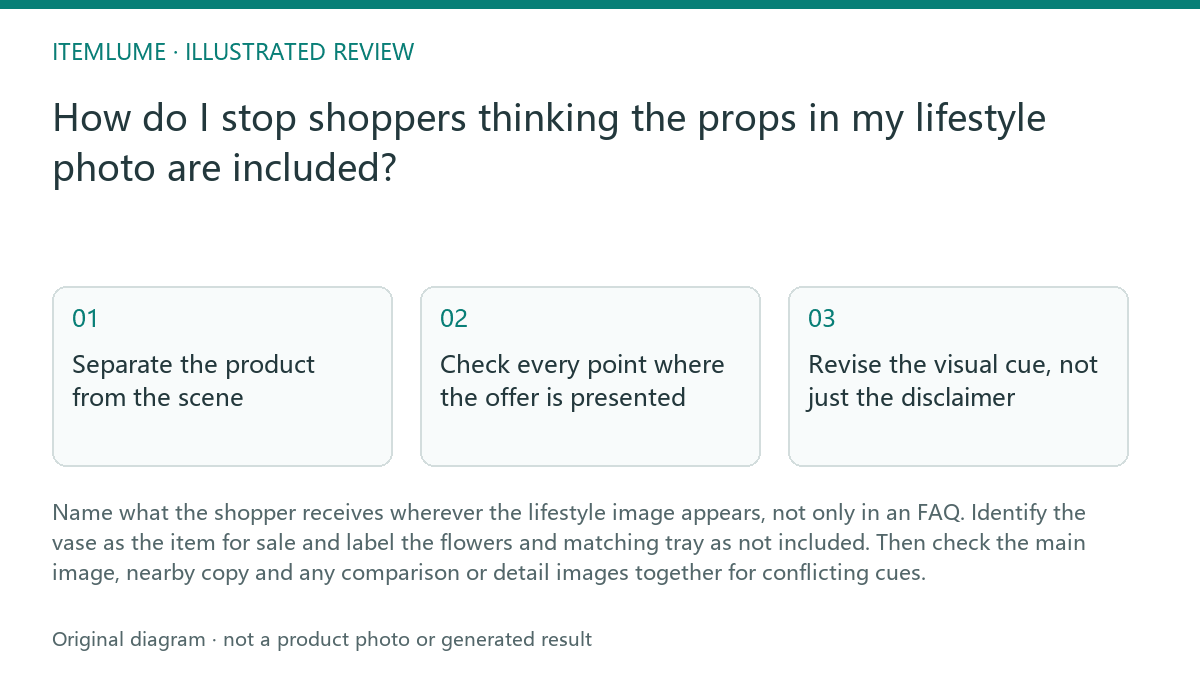
Separate the product from the scene
Start with the offer, not the photograph. List each item included in the purchase, including any accessories, and list the decorative objects used only to stage the scene. For this example, the vase is sold; the flowers and matching tray are props. If an item is included only in some options, name the relevant option rather than making a general claim.
Review the image at the size shoppers are likely to see it. A prop can look like a coordinated set when its color, placement or styling visually links it to the product. Use a clear nearby label such as “Vase only; flowers and tray not included.” Keep the label legible and close enough to the image that the relationship is unmistakable.
Check every point where the offer is presented
A disclaimer in an FAQ may be missed by someone deciding from the main image or first product description. Put the inclusion distinction beside the lifestyle image and make the product copy consistent: describe the vase’s features without suggesting the flowers or tray come with it. Check image captions, comparison graphics and option names too.
Use this sequence: 1) write the included-item list for the exact option; 2) mark each visible object in the image as sold, included accessory or prop; 3) check the main image and the first nearby copy for a clear prop disclosure; 4) scan other images and option labels for contradictory bundle language. This is a seller review workflow, not a claim that a particular marketplace accepts a specific image or label.
- Write the confirmed contents for the exact sellable option before styling the scene.
- Mark each visible object as supplied merchandise, optional accessory, or demonstration prop.
- Read the image and its nearby caption without opening the FAQ; confirm that the inclusion statement is understandable.
- Repeat the check across the remaining images and options; stop approval when any object has an unresolved selling role.
Revise the visual cue, not just the disclaimer
If shoppers could still read the scene as a set, simplify it. Move the tray away from the vase, reduce the number of props, or use a separate detail image that shows the vase alone. Keep the product prominent, but do not rely on visual prominence to explain what is included. The label and copy still need to state the distinction plainly.
Avoid vague wording such as “accessories shown” when it does not identify which items are excluded. Do not call the tray optional unless shoppers can actually select or purchase it as an option. If the listing offers multiple configurations, use a separate, accurate inclusion statement for each one and avoid reusing a lifestyle image that depicts a different configuration without a clear label.
Review with a stop condition
Ask someone unfamiliar with the listing to look at the main image and nearby copy, then answer: what is for sale, and what arrives with it? Treat uncertainty about the flowers or tray as a failed review, even if the FAQ is accurate. Revise the image or adjacent copy and repeat the check.
Stop when the exact option’s included items are explicit beside the lifestyle image, the first product copy does not imply extra items, and every other image or option label agrees. This review can reduce ambiguity in the listing; it cannot establish how every shopper will interpret an image or prove product performance.
Lifestyle image inclusion review
| Observation | Next check | Pass condition |
|---|---|---|
| Vase, flowers and tray appear together | Compare each visible object with the exact option’s included-item list | Vase is identified as sold; flowers and tray are identified as props |
| Main image shows the full styled scene | Read the image and its nearby copy without opening the FAQ | A shopper can tell the tray and flowers are not included |
| Another image shows the tray beside the vase | Check its caption, labels and any bundle or option wording | No image or label implies the tray is part of the purchase |
| Listing has more than one vase option | Compare the disclosure with each option’s actual contents | Each option has an accurate, distinct inclusion statement |
Sources and further reading
Sources for this page were checked on . Platform rules can change; verify the current source before publishing. Prompt examples and workflow recommendations are Itemlume editorial guidance, not independently measured results.
Frequently asked questions
Should I put “props not included” only in the FAQ?
No. Put a clear disclosure beside the lifestyle image and keep the main product copy consistent; an FAQ can provide supporting detail.
Can I call the tray optional?
Only if shoppers can actually choose or purchase it as an option. Otherwise, identify it as a prop that is not included.
What should I do if the scene still looks like a set?
Separate or remove the props, or add a clear nearby label and a vase-only image. Review the main image and copy together again.
BUILD FROM A PRODUCT YOU KNOW
Put this workflow into practice with your own product.
Explore the relevant tool first. AI copy and concept planning are free after sign-in. Image and video generation require available credits and the applicable account access.
Open A+ product pages Check pricing and credits