 Itemlume
DIAGNOSTIC GUIDE / Assets & tasks
Why does my WebP work as a product image but fail as a Shopify collection image?
Check the destination before remaking the image. Shopify’s reviewed guidance distinguishes collection images from product media and Files: a WebP accepted in one place can still be rejected in another. Preserve the approved product appearance and convert a separate delivery copy if required. The key comparison is the same approved image in two different upload locations.
Why the upload location changes the answer
A valid image and a supported destination are different checks. Renaming the extension does not convert the encoded file. A successful product upload therefore does not certify the same file for a collection cover, and an error at the collection stage does not prove the original creative is defective.
Start from the collection editor itself. If its current help confirms a different accepted format, the product-gallery result is merely a comparison. Inspect whether the selected asset is the converted copy, because identical thumbnails can hide different encodings.
Convert a copy in the collection workflow
Open the actual collection editor and retain its exact message. Compare the same approved asset in the product media area and the intended collection position. Export a new supported-format copy in an editor, preserve the crop, and verify that the new filename describes its destination rather than replacing the master.
In the conversion editor, preserve the chosen crop and compare transparent edges against the intended background. A white JPEG background may be acceptable for the approved cup image but unsuitable for a transparent logo; the destination and visual decision both need an owner.
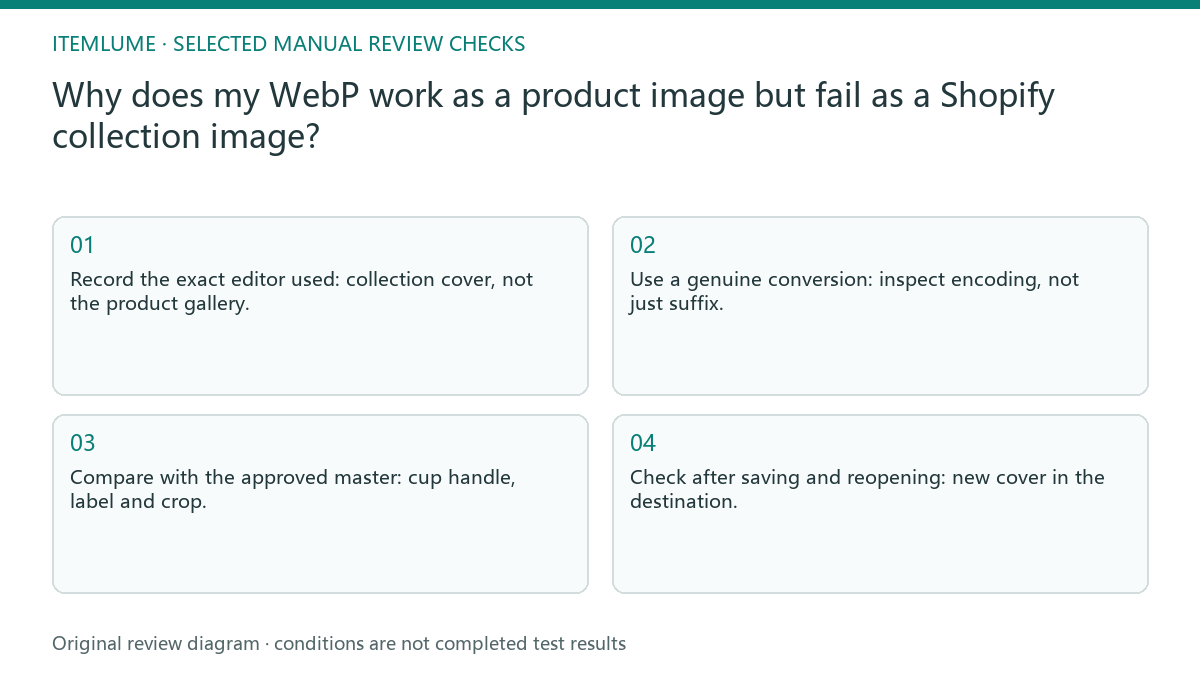
- Record the exact editor used: collection cover, not the product gallery.
- Use a genuine conversion: inspect encoding, not just suffix.
- Compare with the approved master: cup handle, label and crop.
- Check after saving and reopening: new cover in the destination.
A cup image accepted in only one destination
Fictional exercise: a ceramic-cup WebP is already visible on a product page but fails as the collection cover. Keep that original. Make a separate JPEG delivery copy, check the cup’s handle and label against the master, and upload only to the collection under review. The exercise does not establish a universal pixel requirement.
Reopen the saved collection rather than judging the upload thumbnail. Compare the cover as a shopper sees it, then keep the product-gallery version unchanged. If conversion works, the conclusion applies to this delivery path, not to every Shopify image slot.
When to stop regenerating the photograph
Stop repeated uploading when the exact target still rejects a correctly converted file. Record the file details and message for Shopify support instead of spending generation credits on the same photograph.
For persistent rejection, attach the actual converted file and target error to the support question. Changing a prompt cannot repair an external editor’s format contract. The store operator verifies the accepted collection cover in Shopify. Itemlume supplies a reviewed creative candidate; file conversion and the external upload remain separate actions.
Target position to accepted result: decision worksheet
| Check | Evidence to record | Review action |
|---|---|---|
| Target position | Collection cover, not the product gallery | Record the exact editor used |
| Actual file format | Inspect encoding, not just suffix | Use a genuine conversion |
| Visual match | Cup handle, label and crop | Compare with the approved master |
| Accepted result | New cover in the destination | Check after saving and reopening |
Use this matrix as a manual review record and add your own real evidence. Its conditions are not completed test results.
Sources and further reading
Sources for this page were checked on . Platform rules can change; verify the current source before publishing. Prompt examples and workflow recommendations are Itemlume editorial guidance, not independently measured results.
Frequently asked questions
Should I rename .webp to .jpg?
No. Export a genuinely encoded JPEG copy in an editor; changing the suffix alone leaves the underlying data unchanged.
Must I regenerate an accepted product photograph?
A destination-format error alone does not justify regeneration. Try the required delivery conversion while preserving the approved creative.
Does this prove every collection accepts the file?
No. Confirm the current requirements and saved result at your actual collection editor.
BUILD FROM A PRODUCT YOU KNOW
Put this workflow into practice with your own product.
Explore the relevant tool first. AI copy and concept planning are free after sign-in. Image and video generation require available credits and the applicable account access.
Open Assets & tasks Check pricing and credits