 Itemlume
DIAGNOSTIC GUIDE / Assets & tasks
My Shopify CSV import succeeded. Why are some product images still missing?
A successful CSV import does not prove that every image was downloaded or attached to the intended product. Shopify’s media help distinguishes import completion from skipped images. Compare the source rows with actual product media and selected variants before sending another import. Keep the original CSV and the import report so a repair does not accidentally change unrelated fields.
Build an expected-media ledger
List each product handle, SKU, source image address and intended role. A product with three source rows does not necessarily require three different images: repeated addresses can represent an association rather than a new asset. Count unique expected pictures separately from variant links.
Inspect the actual product in the admin and the public storefront. Record a missing asset, an existing asset with a wrong association, and an existing but undisplayed asset as different outcomes. A theme presentation problem needs a different repair from a failed download.
Verify the file address before repairing
Open a missing image address in a fresh signed-out session. It should reach the intended image file without an account, expired sharing permission or a page that merely contains a preview. Check that the address still returns the correct SKU picture rather than an error or replacement.
Do not put confidential photos on a public host just to satisfy this test. Use approved public product assets, keep restricted material out of the import, and ask the host owner to resolve an access failure. Itemlume creation and Shopify import are separate manual activities.
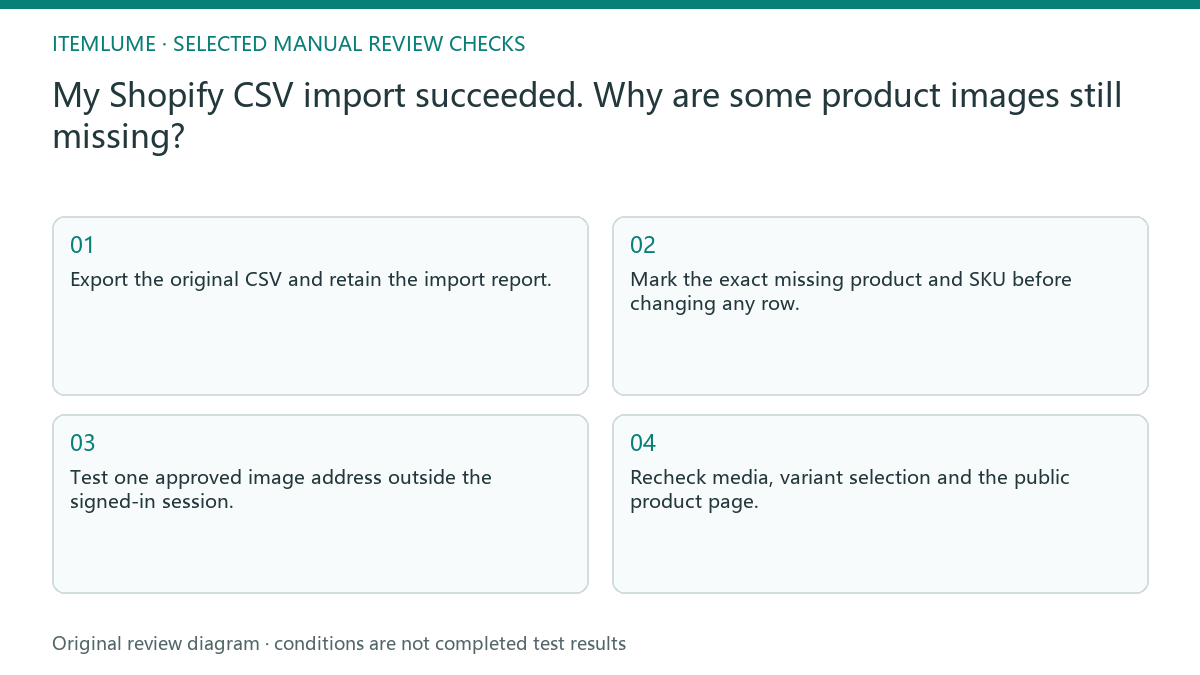
- Export the original CSV and retain the import report.
- Mark the exact missing product and SKU before changing any row.
- Test one approved image address outside the signed-in session.
- Repair one affected record using the current Shopify workflow.
- Recheck media, variant selection and the public product page.
Fictional exercise: separate two failures
In this fictional exercise, a mug import finishes successfully. The blue image uses an expired share address; the green image is already in the product library but the green variant points to blue. These observations are deliberately invented to demonstrate diagnosis, not an Itemlume test.
Replace only the blue address with an approved accessible file and verify its arrival. Then correct the green association without uploading another green picture. If the asset remains absent after that isolated repair, stop repeating the batch and preserve the report for store support.
Close against the buyer’s selected variant
Approval requires the expected image in product media and the intended result when the buyer selects the variant. Compare color, package count and model name, not only file existence. Record the final file and association alongside the repaired row so another operator can reproduce the check.
A green checkmark on the import screen is not the stopping rule. Stop when each affected ledger entry has a verified outcome, or explicitly hold the unresolved entry. Do not describe the rest of a catalog as approved after checking one product.
Missing-image decision ledger
| Observation | Manual check | Stop or approve |
|---|---|---|
| Source address fails | Open the actual file signed out | Hold and repair hosting |
| File absent in media | Compare expected unique files | Repair one affected record |
| Wrong variant picture | Check the selected association | Correct the association |
| Admin correct, page blank | Check the theme with store owner | Hold until display verified |
Use this matrix as a manual review record and add your own real evidence. Its conditions are not completed test results.
Sources and further reading
Sources for this page were checked on . Platform rules can change; verify the current source before publishing. Prompt examples and workflow recommendations are Itemlume editorial guidance, not independently measured results.
Frequently asked questions
Should I regenerate the picture?
Only if the asset itself is wrong. A broken address or association is not repaired by a new creative.
Does row count equal image count?
No. Count distinct expected files and required variant associations separately.
Can Itemlume fix the import automatically?
This guide describes manual Shopify checks, not an Itemlume store connector.
BUILD FROM A PRODUCT YOU KNOW
Put this workflow into practice with your own product.
Explore the relevant tool first. AI copy and concept planning are free after sign-in. Image and video generation require available credits and the applicable account access.
Open Assets & tasks Check pricing and credits