 Itemlume
DIAGNOSTIC GUIDE / Assets & tasks
Does removing an image from one Shopify product delete the file everywhere?
Removing media from a Shopify product and deleting its store file are different operations. Before cleanup, map where the image is used and decide whether the task is to detach one product association or remove the shared file itself. The desired outcome is one removed association, with other confirmed buyer routes intact.
A product association is not the shared file
The reviewed Shopify help distinguishes a product’s media association from Content > Files. Shared media can have other consumers beyond the product you are editing. A smaller gallery does not prove storage was freed, and a global deletion should not be used merely to hide one unwanted product view.
Write the intended outcome as “not shown on this product” or “remove the file from the store.” These are materially different requests. Check the actual confirmation dialog rather than assuming controls with a similar trash icon have identical scope.
Draw the uses before removing media
Locate the actual file and its current associations before using a deletion control. List products, descriptions, campaign pages and hard-coded links that depend on it. Carry out only the approved association change, reopen those destinations, and leave a reusable master untouched unless global deletion was explicitly intended.
The dependency list should include the actual file link, not only the product title. Open a known guide or campaign that uses the asset and retain its route. A manual list can miss external consumers, so an incomplete map is a reason to avoid global deletion.
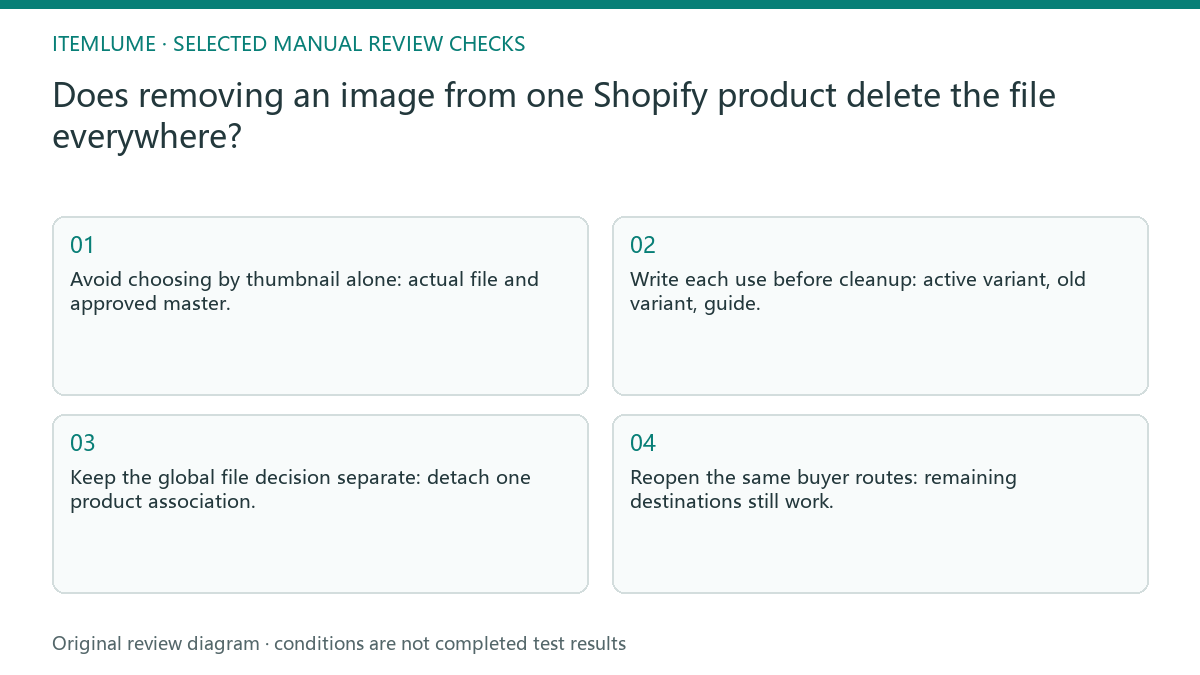
- Avoid choosing by thumbnail alone: actual file and approved master.
- Write each use before cleanup: active variant, old variant, guide.
- Keep the global file decision separate: detach one product association.
- Reopen the same buyer routes: remaining destinations still work.
An old variant beside a live buying route
Fictional exercise: one lamp photo is shared by two product variants and a buying guide. The operator wants it removed only from the discontinued variant. Record all three uses, remove that product association, and check that the active variant and guide still display the intended image. No deletion is performed in this exercise.
After detaching the discontinued variant, revisit the active one and the guide through their normal buyer paths. Check the image itself, not a cached thumbnail in the editor. A missing active image means the scope decision needs investigation before any further cleanup.
Avoid an unintended store-wide deletion
Stop if you cannot determine whether a control affects one association or the global file. Resolve the scope with the store owner before attempting further cleanup.
Retain the approved master and the association decision record. Storage management is a separate administrative task, with its own access and recovery plan. The Shopify administrator owns the association and file decisions. Creative generation does not manage store storage, find every external copy or guarantee a deleted file can be restored.
File identity to post-change review: decision worksheet
| Check | Evidence to record | Review action |
|---|---|---|
| File identity | Actual file and approved master | Avoid choosing by thumbnail alone |
| Associations | Active variant, old variant, guide | Write each use before cleanup |
| Requested action | Detach one product association | Keep the global file decision separate |
| Post-change review | Remaining destinations still work | Reopen the same buyer routes |
Use this matrix as a manual review record and add your own real evidence. Its conditions are not completed test results.
Sources and further reading
Sources for this page were checked on . Platform rules can change; verify the current source before publishing. Prompt examples and workflow recommendations are Itemlume editorial guidance, not independently measured results.
Frequently asked questions
Does removing one product image free storage?
Not necessarily. Product association removal and the file retained in Content > Files are separate checks.
How do I identify the shared image?
Use its actual file record and link plus each known destination. Similar thumbnails or filenames alone are insufficient.
What if the button’s scope is unclear?
Stop before confirming and ask the administrator which association or file will change.
BUILD FROM A PRODUCT YOU KNOW
Put this workflow into practice with your own product.
Explore the relevant tool first. AI copy and concept planning are free after sign-in. Image and video generation require available credits and the applicable account access.
Open Assets & tasks Check pricing and credits