 Itemlume
DIAGNOSTIC GUIDE / Assets & tasks
Should I upload again when Shopify still says processing but the image is already there?
Do not upload the same image again solely because Shopify still displays an uploading or processing banner. First check whether the file exists in the intended product’s Media section and whether its preview opens. Shopify documents banners that remain after completion. A visible file, a playable preview, and a lingering banner are different pieces of evidence.
Check the destination instead of the banner alone
Write down the product title, variant if relevant, file name, and approximate upload time. Open that exact product’s Media section. A matching file in Content > Files does not by itself prove that it was attached to the intended product; confirm the destination before declaring the task complete.
If the media is present and the preview works, inspect the storefront placement separately. A theme may display media differently from the admin. Do not keep uploading additional copies to fix an association or display issue. Capture the evidence that separates transfer, attachment, and presentation.
Use an existence, preview, placement check
An unchanging banner is weak evidence of failure. Shopify’s own troubleshooting says to look in product media because an upload can complete even when the banner reports a problem. The useful next action depends on the file state, not on how impatient the operator feels.
If the file is absent, preserve the exact error and try a small, supported comparison file in the same destination. If the file exists but cannot preview, investigate its encoding or processing. These tests change one variable; they avoid turning a single problem into a gallery full of duplicate attempts.
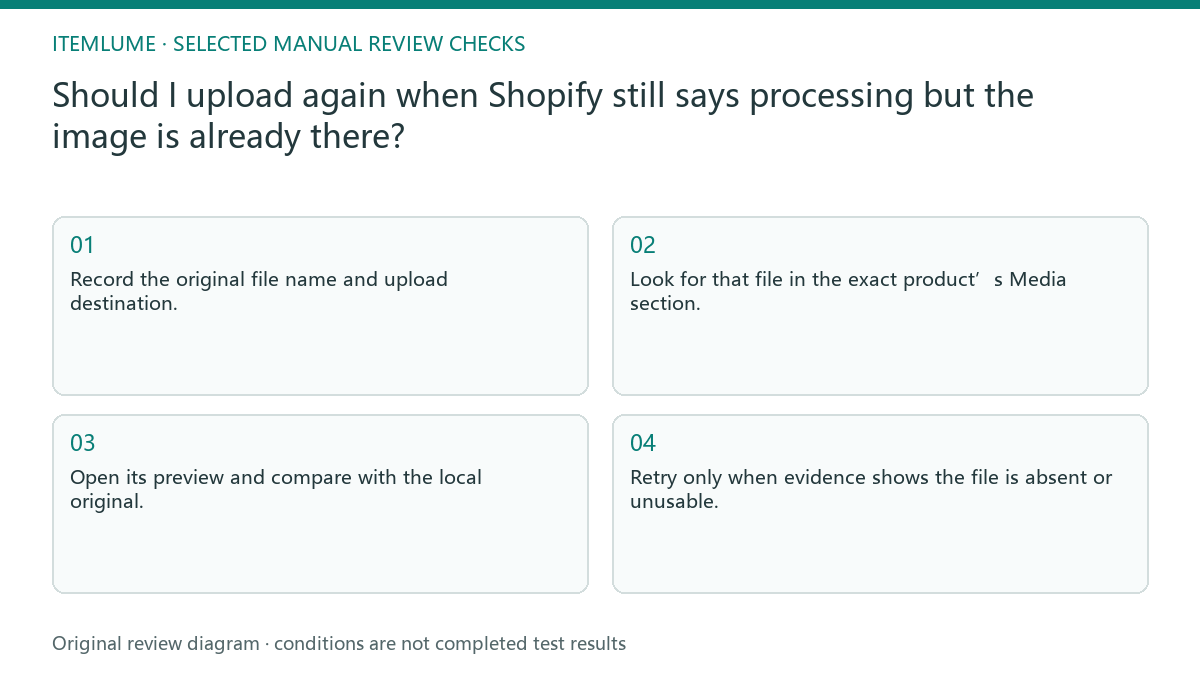
- Record the original file name and upload destination.
- Look for that file in the exact product’s Media section.
- Open its preview and compare with the local original.
- Check intended storefront placement without placing an order.
- Retry only when evidence shows the file is absent or unusable.
A fictional bottle-photo handoff
Fictional exercise: a seller uploads bottle-front-v2.png. The Files screen still shows a remaining-upload banner, but the product gallery contains that image and its preview matches the local file. The exercise would classify this as a completed upload with a stale status display, not as a missing image.
The seller does not upload v2 again. They refresh the relevant view and record the existing file and attachment. If the storefront instead shows the old photograph, they investigate the gallery selection or old link. This scenario illustrates interpretation; no live Shopify store or customer data was tested.
Stop before duplicate cleanup becomes risky
When several attempts already exist, identify which copy is actually referenced before removing anything. Removing media from a product and deleting a store file are different operations. Keep the local original and ask the store owner to review shared references before any irreversible file deletion.
Itemlume produces creative assets; this process takes place manually in Shopify. There is no implied automatic upload, deduplication, or store cleanup connection. If the existing media remains unusable or Shopify gives a specific processing error, send support the destination, file details, exact message, and comparison checks rather than repeatedly resubmitting it.
Three separate states to record
| Observed state | Action | Completion evidence |
|---|---|---|
| Banner persists; file previews | Inspect destination association | Correct product has the usable file |
| File absent from product | Check Files and exact error | Required attachment is confirmed |
| File exists; preview fails | Review format and encoding | Supported file previews correctly |
| Admin correct; storefront old | Check displayed media or link | Live page uses intended version |
Use this matrix as a manual review record and add your own real evidence. Its conditions are not completed test results.
Sources and further reading
Sources for this page were checked on . Platform rules can change; verify the current source before publishing. Prompt examples and workflow recommendations are Itemlume editorial guidance, not independently measured results.
Frequently asked questions
Can I ignore every processing message?
No. A lingering banner is one documented situation. A missing file, failed preview, or specific processing error still needs investigation.
Why not rename and reupload?
That creates another object without explaining the first upload. It can complicate gallery selection and later cleanup. Check the existing media first.
Does this fix Itemlume generation status?
No. It concerns a manual Shopify upload after downloading a file. Itemlume generation and download status are separate tasks.
BUILD FROM A PRODUCT YOU KNOW
Put this workflow into practice with your own product.
Explore the relevant tool first. AI copy and concept planning are free after sign-in. Image and video generation require available credits and the applicable account access.
Open Assets & tasks Check pricing and credits