 Itemlume
DIAGNOSTIC GUIDE / Product videos
Why do moving product edges show comb-like lines after export?
Comb-like horizontal edges during movement may indicate interlaced footage or incorrect field interpretation, but not every stripe is an interlacing problem. Compare the source clip and actual export at the same moving edge. Inspect scanning and field-order settings in an external editor before changing bitrate or paying to regenerate a product scene.
Locate the combing in a moving frame
Choose a frame where the product edge crosses a contrasting background. Compare nearby frames and an unmoving section. Regular alternating edge lines during motion suggest a different failure from texture shimmer, block compression, or a shape that the generation already changed. Record the observation without assigning a cause too early.
Check the untouched source outside the editing timeline. If it already contains the same lines, the export did not introduce them. If the source looks correct and only the assembled file fails, inspect import interpretation and delivery settings. Keep screenshots at the same scale so resizing does not disguise the defect.
Inspect scanning and field order in context
Adobe’s basic export documentation includes progressive and field-order options. The appropriate choice depends on the actual source and required delivery. A modern campaign file and an older interlaced source cannot be treated as equivalent solely because they have the same frame dimensions.
Do not switch several technical settings at once. Check what the editor believes about the source, then make one short comparison export with the documented delivery choice. Deinterlacing is an external processing decision and may alter fine detail; inspect labels and small product contours after the change.
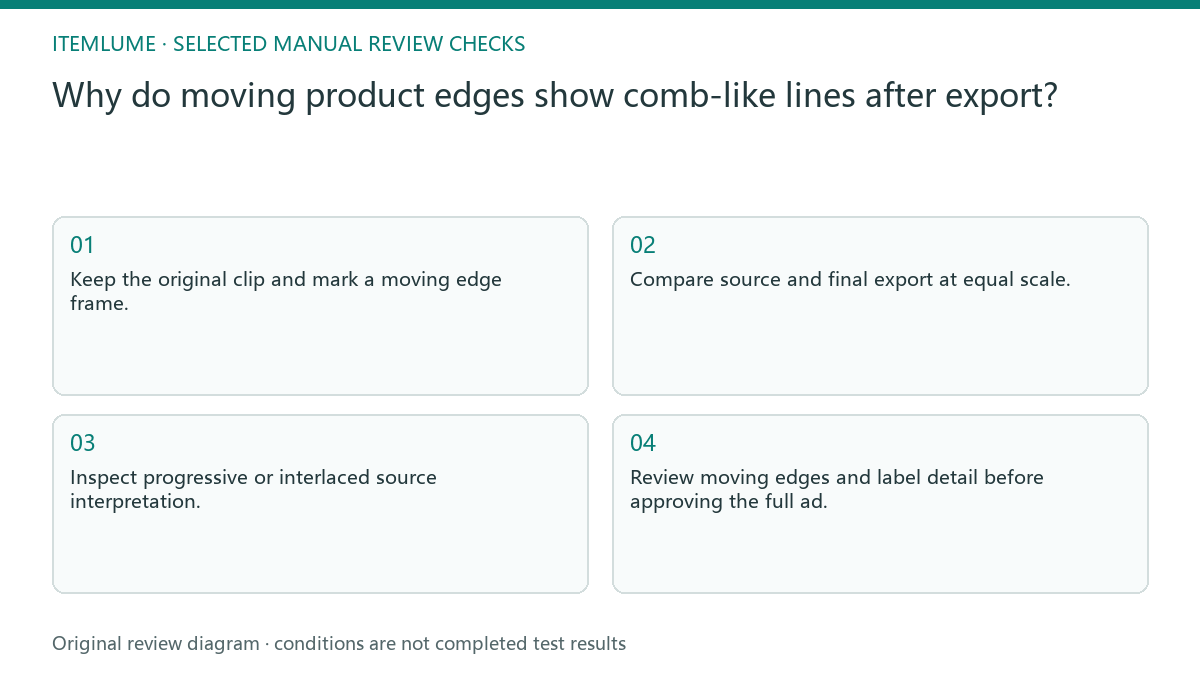
- Keep the original clip and mark a moving edge frame.
- Compare source and final export at equal scale.
- Inspect progressive or interlaced source interpretation.
- Make one short external export with the required field treatment.
- Review moving edges and label detail before approving the full ad.
A fictional reused showroom clip
Fictional exercise: a seller adds an older showroom clip to a new product advertisement. A rotating bottle shows comb-like edges in the assembled file. The log separates the old source, timeline interpretation, and export. It does not claim that the new H3 product scenes are interlaced or faulty.
If the actual comparison shows the combing originates in the showroom clip, process that clip externally or replace it with suitable source footage. If it appears only at export, review that stage instead. This example has no measured conversion result; stop when labels or contours become damaged during the proposed correction.
Do not turn a source-format issue into repeated generation
A higher bitrate cannot resolve incorrect field handling by itself. Likewise, sharpening can make alternating edges more obvious. Use the identified stage to choose the intervention. Ask an editor to preserve the approved product appearance and record any transformation applied to the source.
Itemlume does not expose an interlacing repair control, and this guide does not state that its generated files use interlaced scanning. External assembly with legacy footage requires separate review. Hold the advertisement when the actual source format remains unclear; a smooth paused frame is not enough to approve motion.
Source-to-export edge check
| Symptom | Evidence | Next action |
|---|---|---|
| Combing in original footage | Same moving frame outside editor | Review source handling |
| Only final export affected | Source and export comparison | Inspect import and output settings |
| Texture shimmers without regular lines | Several moving frames | Investigate texture or compression |
| Correction damages label | Detail comparison after processing | Reject that processing choice |
Use this matrix as a manual review record and add your own real evidence. Its conditions are not completed test results.
Sources and further reading
Sources for this page were checked on . Platform rules can change; verify the current source before publishing. Prompt examples and workflow recommendations are Itemlume editorial guidance, not independently measured results.
Frequently asked questions
Does more bitrate remove combing?
Not when incorrect field treatment is the cause. Identify the scanning and interpretation first.
Are H3 clips necessarily interlaced?
This guide makes no such claim. Inspect the actual delivered file rather than assuming its format.
Can I review only a paused frame?
No. Include movement and nearby frames; the defect can depend on motion and field timing.
BUILD FROM A PRODUCT YOU KNOW
Put this workflow into practice with your own product.
Explore the relevant tool first. AI copy and concept planning are free after sign-in. Image and video generation require available credits and the applicable account access.
Open Product videos Check pricing and credits