 Itemlume
DIAGNOSTIC GUIDE / Product videos
Why won’t Canva accept the transparent ProRes title I want to put over my ad?
A transparent ProRes title can be rejected because the receiving editor does not support that codec or transparent video workflow. The MOV extension alone is not enough to diagnose it. Check the actual codec and alpha, then consult Canva’s current upload requirements. Renaming the file to MP4 cannot preserve unsupported transparency or convert its encoding.
Identify what must remain transparent
Write down whether you need the logo to remain transparent during animation or only want a static mark above an existing video. These are different assets. A static transparent image may suit a simple fixed overlay, while an animated title needs a compatible compositing workflow throughout its frames.
Open the source in an external editor that can inspect transparency. Confirm whether the background is truly transparent or merely black pixels. Keep the title separate from the advertisement. A file that visually blends with a black preview may still create a rectangular background on a light campaign scene.
Check codec support at the actual import destination
Canva’s official upload requirements identify transparent-video and ProRes limitations. ProRes 4444 and ProRes 422 are not interchangeable merely because both may use MOV. Check the named codec, alpha requirement, and current destination support together before choosing an export profile.
Do not flatten an animated title against black simply to make it upload. That may remove alpha and create an unwanted block over the advertisement. If the target editor cannot import the required title, composite it in a suitable external editor and deliver the finished opaque campaign video instead.
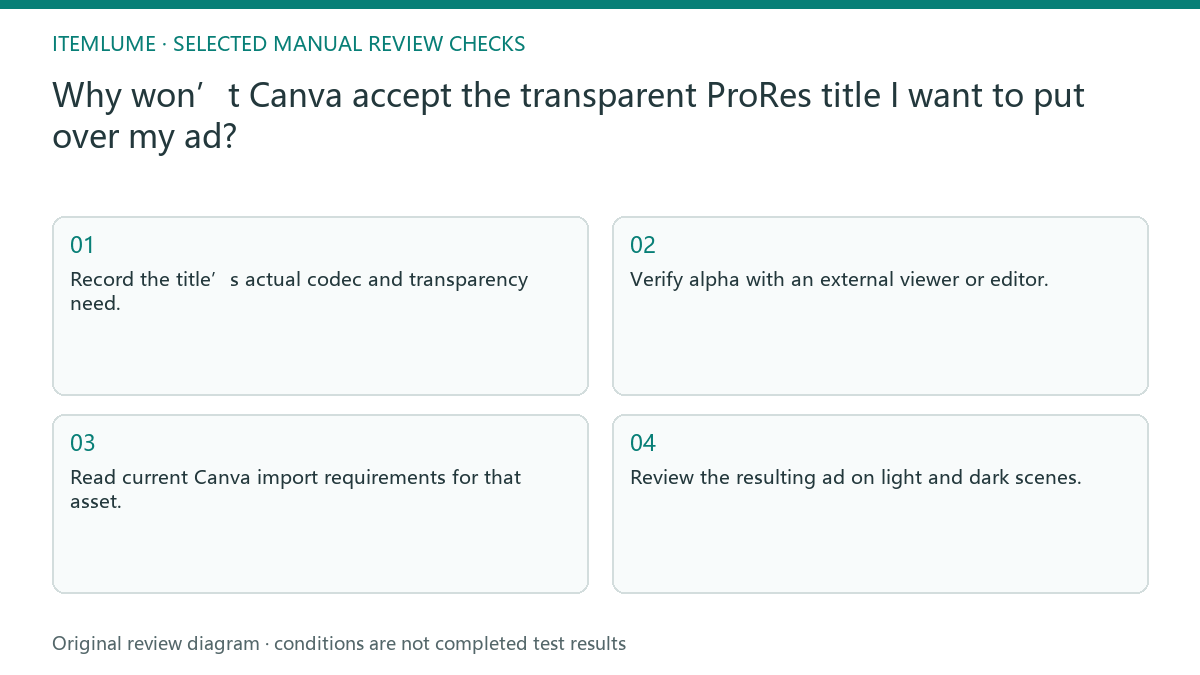
- Record the title’s actual codec and transparency need.
- Verify alpha with an external viewer or editor.
- Read current Canva import requirements for that asset.
- Choose a supported overlay or external compositing route.
- Review the resulting ad on light and dark scenes.
A fictional animated logo delivery
Fictional exercise: a designer supplies an animated logo as a transparent ProRes title, while the seller plans to finish the ad in Canva. The upload is rejected. The reviewer checks the export codec instead of shortening the file name or changing MOV to MP4. No actual Canva account was tested in this exercise.
If only the final composite is required, the designer can propose assembling the title over the approved ad in an external editor. The seller then reviews the actual delivered video for the logo’s edges and timing. If they still need to rearrange the animation in Canva, stop and agree on a genuinely supported alternative rather than promising editability.
Keep the current Itemlume output boundary clear
Itemlume’s TVC output is an opaque silent assembled video, not a transparent title export. This guide concerns an additional asset supplied by an external design workflow. It does not imply built-in alpha export, editable motion graphics, voice recording, or a connection that sends files into Canva.
Approve the whole final video, including where the title enters and leaves and whether it covers essential product information. A successful upload is only a transfer milestone. Stop when the needed transparency or animation cannot survive the chosen workflow; another filename does not change that limitation.
Title asset compatibility record
| Asset state | Check | Suitable decision |
|---|---|---|
| Animated title with alpha | Actual codec and target support | Use compatible compositing route |
| Black rectangle around title | Test true transparency | Reject accidental flattening |
| Static logo sufficient | Supported transparent image import | Use approved static overlay |
| Finished composite required | Play final opaque ad | Approve timing and product visibility |
Use this matrix as a manual review record and add your own real evidence. Its conditions are not completed test results.
Sources and further reading
Sources for this page were checked on . Platform rules can change; verify the current source before publishing. Prompt examples and workflow recommendations are Itemlume editorial guidance, not independently measured results.
Frequently asked questions
Does MOV mean ProRes with alpha?
No. MOV is a container; the actual codec and alpha must be inspected.
Can renaming it MP4 solve rejection?
No. Renaming does not transcode the media or retain unsupported transparency.
Is a rendered composite still editable?
It is a finished visual, not necessarily separate editable title layers. Agree on that difference before handoff.
BUILD FROM A PRODUCT YOU KNOW
Put this workflow into practice with your own product.
Explore the relevant tool first. AI copy and concept planning are free after sign-in. Image and video generation require available credits and the applicable account access.
Open Product videos Check pricing and credits